iPhone · Setup & help
Turn a saved video into a ringtone
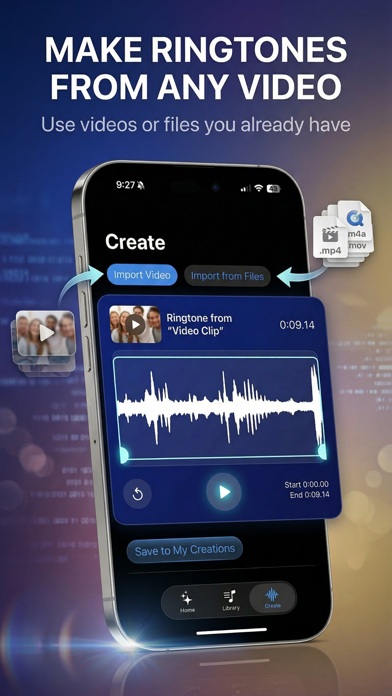
Import a saved video with an audible audio track, trim the part you want, and export its sound as a ringtone. A silent video or a video link cannot supply audio that is not present.
Start with a saved clip
Use a video you recorded or have permission to use. Play it outside Ringy first to check that the sound you want is actually included. A social-media URL is not the same input as a downloaded video file, and some saved clips omit the original soundtrack.
Make the tone in Ringy
- Open the tone maker and select the available video import option.
- Choose the saved video. If you use a limited Photos permission, make sure that clip is among the permitted items.
- Select a short excerpt in the editor, listen to the beginning and end, and adjust the boundaries.
- Save or export using the options shown by your version, then complete the iPhone ringtone setup.
Do not use the full movie as a ringtone. Pick the brief phrase or musical moment you want to recognize when your phone rings. A little context can help a phrase make sense, but silence at the beginning delays the useful part.
If import fails
Confirm the video contains audio and is available locally. Free enough device storage for the original and exported copy. If the file plays but remains unsupported, try a standard export from the app that created it, using audio you are allowed to export. Renaming MP4 to MP3 will not extract the soundtrack.
Related guides
- Trim a ringtone so the right moment plays first
- Fix Ringy import and ringtone export problems
- How to set a custom ringtone on iPhone
Sources & compatibility
Documentation and product records reviewed October 18, 2026. These instructions have not been physically tested on every supported phone in this review.
Ringy publishes this guide about its own app and phone setup. Menus can vary by device, OS version and region. For a correction, email help@rin.gy.