iPhone · Setup & help
How to set a custom ringtone on iPhone
Choose or create your sound, export it as a ringtone, and then select it for calls. Ringy’s saved library and the iPhone’s active ringtone are separate.
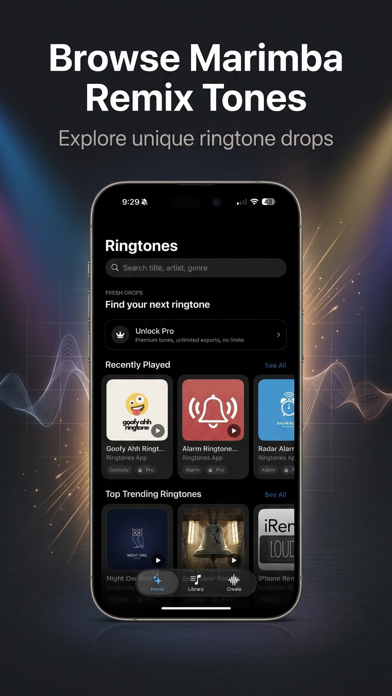
Start with the sound you want
If you followed a Ringy share link, note the complete title, including the remix or speed label. Open that sound in Ringy; if installation takes you to the app’s home screen, search the exact title. For your own recording, use Ringy’s available audio or video import and choose a short section.
Some older share-page titles differ from the current app catalogue. If the page shows a Name in Ringy field, use that name when searching in the app. The original share URL still identifies the same entry.
Before exporting, preview the beginning and end inside the app. Avoid silence before the first sound. Keep a recognizable, short phrase rather than a whole song. Give the result a name you can recognize later in the system picker.
Finish the export
- In Ringy, open the tone and choose Use as Ringtone. Complete any access step the app presents.
- Follow the system sharing instructions. On a supported system, choose Use as Ringtone in the share sheet if it is offered.
- If that system action is absent, use the GarageBand export method with a saved, unprotected audio file. Do not repeatedly purchase the sound to make an OS action appear.
Confirm the selection
Open Settings → Sounds & Haptics → Ringtone and select the exported name. Then ask someone to call you. Hearing a preview inside Ringy proves playback works; it does not prove that incoming calls use that tone.
A particular contact may have a separate ringtone. Text messages and alarms also have separate selectors. If only one kind of alert still uses the old sound, change the setting for that alert instead of exporting again.
Related guides
- Why is Use as Ringtone missing?
- Set a different ringtone for one contact
- Ringtones, text tones and alarms: which setting changes what?
Sources & compatibility
Documentation and product records reviewed October 18, 2026. These instructions have not been physically tested on every supported phone in this review.
- Apple: Use tones and ringtones
- Apple: Create a custom ringtone on your iPhone
- Ringy’s current iPhone App Store listing
Ringy publishes this guide about its own app and phone setup. Menus can vary by device, OS version and region. For a correction, email help@rin.gy.